How do I add a journey?
Tap Add on the board. There are five ways.
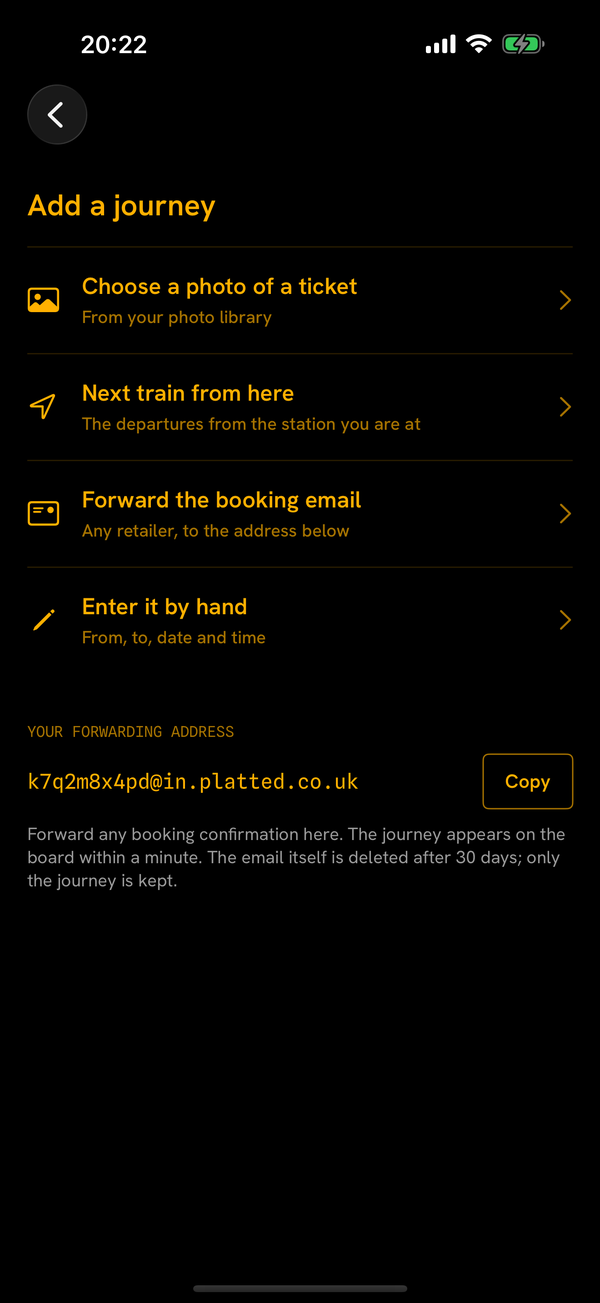
- Forward the booking email. Forward your booking confirmation to your personal Platted address. Platted reads it and adds the journey within a minute.
- Photograph the ticket. Take a picture of your ticket, or choose one from your photo library. Platted reads the stations, date and time from it.
- Share it to Platted. From Mail, Photos or a screenshot, share a picture or a PDF of the ticket to Platted from the share sheet. It is read as a photo is.
- Enter it by hand. Choose the stations, the date and roughly when you travel. Platted offers the real trains near your time. Pick yours.
- Scan a platform board. Photograph the screen on your platform. Platted finds the station you are at, reads the trains on the board and shows each one's route. Pick yours and where you get off.
- Next train from here. See the departures from the station you are at, with the platform where the station already knows it. Pick a train and where you get off. This works without a subscription.
Where is my forwarding address?
On the Add screen, with a Copy button next to it. The address is yours alone. It can help to save it as a contact, so it is easy to find when you forward a booking.
How do I repeat a journey?
Open a journey and tap Repeat this journey, then choose the days. Platted adds it every one of those days, ready to follow, with no booking needed. To stop, go to Settings and tap Stop under the journey. Its journeys from tomorrow are removed; today's stays on the board.
A repeated journey also shows the train before and the train after yours, as "Also 16:36 · 17:36" under your train. If plans change, open your train and tap I'm getting this one on the other train. Platted follows that one instead, and Previous journeys records the train you took. If you change trains on the way, the other train comes with the connection it makes. You can turn this off for each journey in Settings. Check your ticket is valid on another train: some tickets are for one train or for off-peak times only.
What do the platform colours and marks mean?
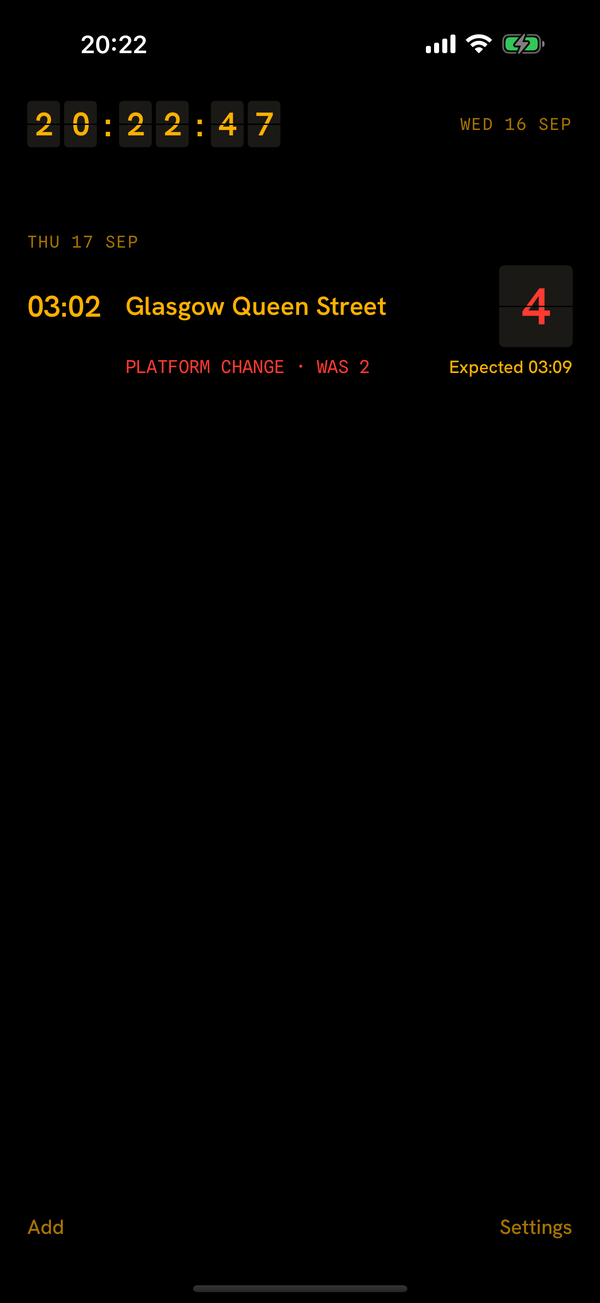
Only three things change colour. Dim means not yet confirmed. Bright means confirmed. Red means it changed.
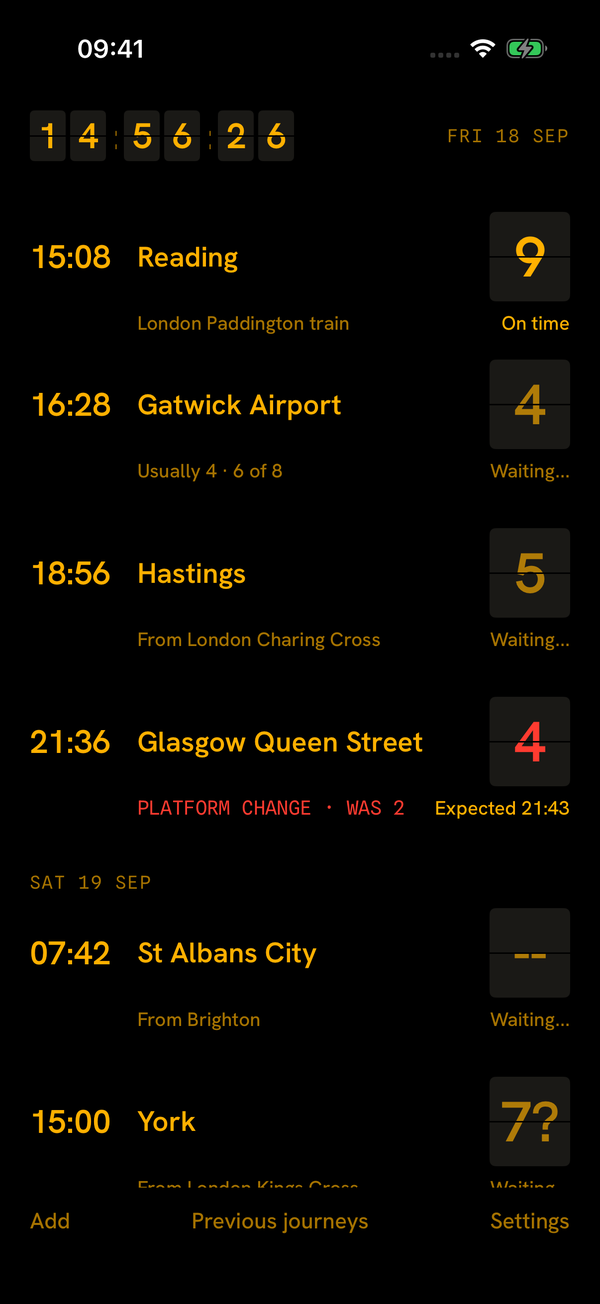
- Two dashes, dimThere is no platform yet.
- A number with a question mark, dimLikely, from Platted's own history of this train. It is not confirmed.
- A number, dimPlanned. A platform is planned for this train but not yet confirmed.
- A number, brightConfirmed. This is your platform.
- A number, redChanged. The line underneath tells you what it was, for example "Platform change · was 2". Red is also used when a train is cancelled.
"Usually 4 · 6 of 8" means this train used platform 4 on 6 of the last 8 runs Platted has recorded. It is a pattern, not a promise.
"Arrive 18:54 · likely 19:01 to 19:10" appears once you are moving. 18:54 is the booked arrival. The range is when this train is likely to arrive, from how it has run before.
A letter after the number, for example 3R, is part of the same platform. Platted shows the letter and never counts it as a change. Only a different number is a change.
Why does my platform only appear a few minutes before departure?
At some stations, often the large ones, the platform is only chosen a few minutes before the train leaves. The live feed cannot confirm a platform before the station has chosen it, so neither can Platted. Until then you see the usual platform, dimmed and labelled as usual. As soon as it is confirmed it turns bright and you get a push. Where an operator plans platforms hours ahead, Platted shows the plan, dimmed, as soon as it is known.
How does Platted track a journey with a change?
Add both trains, for example Westbury to Reading and then Reading to Gatwick Airport. They can come from one booking or be added one at a time. Platted links two trains when the second leaves from the station the first arrives at, on the same day, within two hours of the booked arrival.
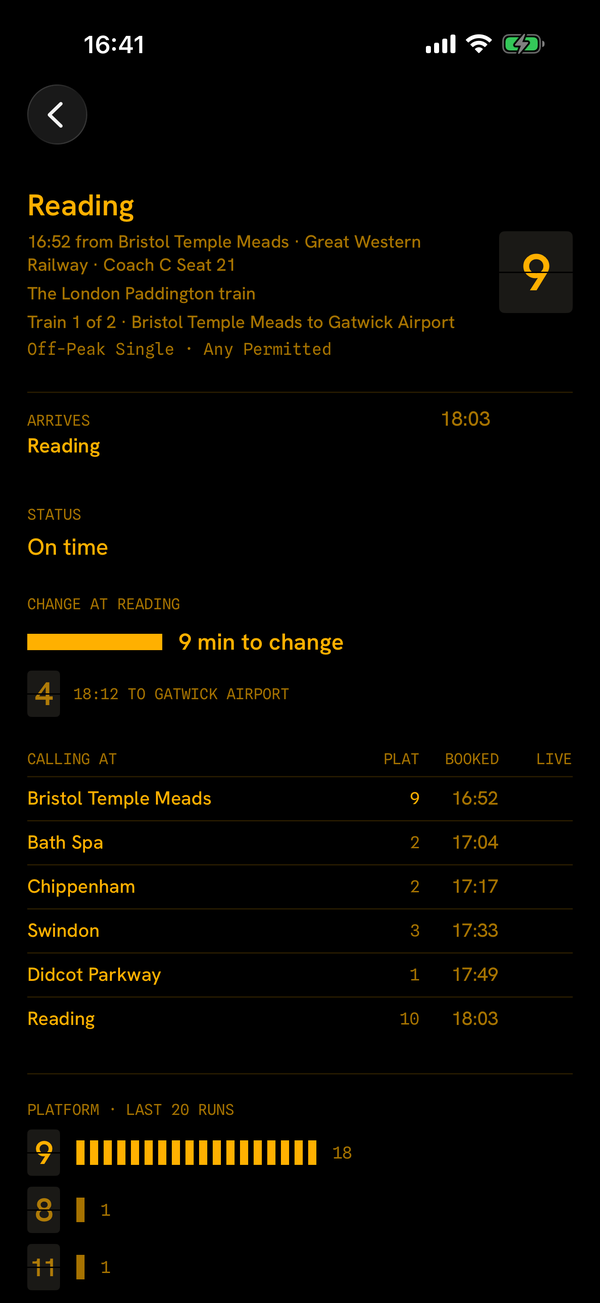
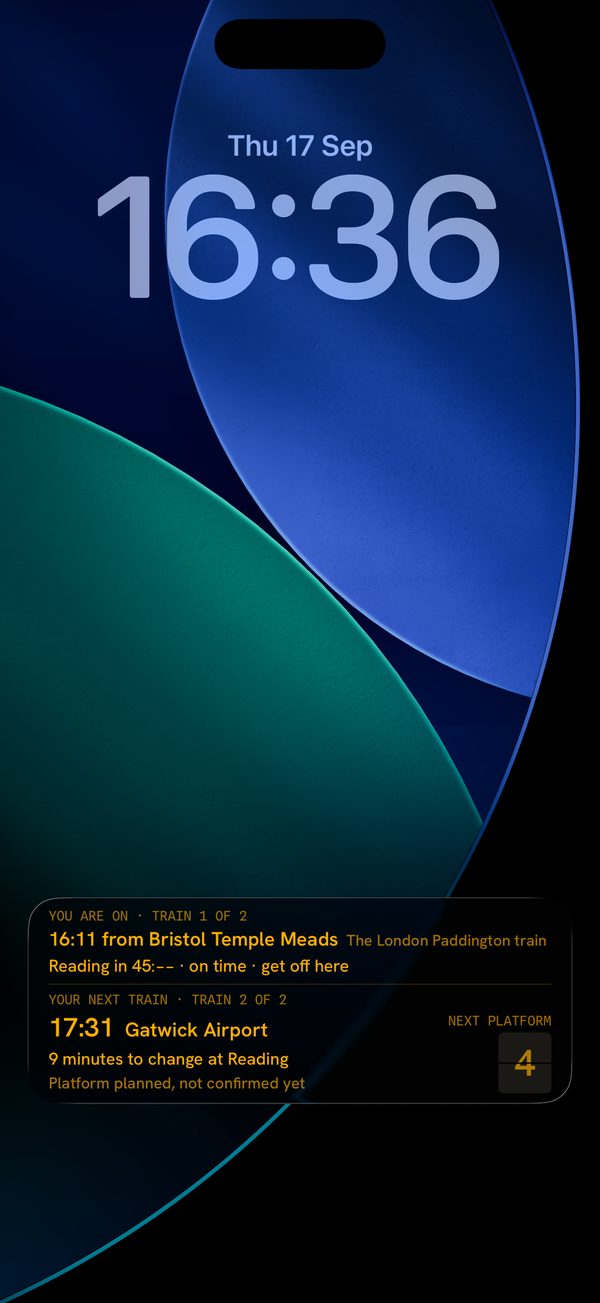
- Which train is which. Every push and the Lock Screen say where you are in the journey, for example "Train 1 of 2 · Westbury to Gatwick Airport". The train is named the way the station screens name it: your 17:36 to Reading might be "the London Paddington train", so the push says "Look for the London Paddington train. You get off at Reading to change."
- As you pull in. One push with your next train, its platform and how long you have: "Reading in about 5 minutes. Get off here", then "Next: 18:32 to Gatwick Airport · 9 minutes to change", then "Go to platform 4. It is planned, not confirmed yet, so check the screens as you go."
- On the Lock Screen. Once you are moving, the card splits in two: the train you are on, and your next train with its platform under a "Next platform" label, so it is never mistaken for the one you left.
- Your next train on its way in. Platted shows where your connecting train is and how late, for example "Your train is at Didcot Parkway, 4 min late".
- If it gets tight. A tight change says so in words, "4 minutes to change at Reading, tight", as well as in red. If your first train is running late and you will miss the change, you hear once, with the next train on that route.
Where Platted can tell, it says whether your ticket is valid on the next train it offers. Where it cannot, it says "Check with staff that your ticket is valid on it". It never guesses.
What happens if my train is cancelled or cut short?
You get one push. It says where the train now ends, if it is cut short, and the next train from there that gets you to your stop: its time, platform and arrival, and whether your ticket is good on it. Tap Follow on the push, or open the journey and tap "Follow the 16:12 to Manchester Piccadilly", and Platted follows that train instead. If it arrives late, delay compensation is measured from the arrival you were booked for, not the replacement's.
Why is my train late, and why might it start late?
When a train is running late, the push and the journey say why, in the operator's own words, for example "delayed by a passenger being taken ill on this train". If the train that forms yours is running late into the station, Platted tells you before yours is due to leave: "Your 07:42 from Westbury may leave late. The train that forms it is due in at 07:40."
What does Quieter coaches show?
Only what the operator sends. There are three cases.
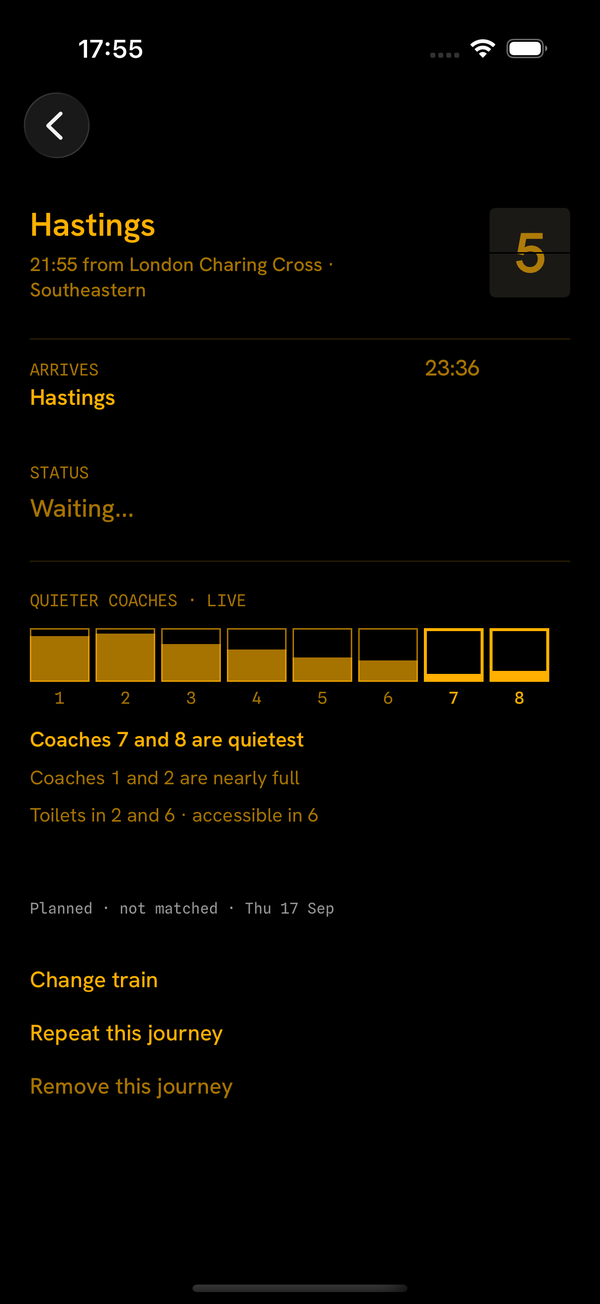
- Counted live, coach by coach. Some trains count how full each coach is at every stop. Platted shows a strip of coaches, the quietest named by number, for example "Coaches 7 and 8 are quietest", and where the count was taken: "Counted at Farringdon". Trains are counted as they reach each stop, never ahead, so the figure is from the last stop the train reached. A coach that is not being counted shows a question mark and is never named. This is available on the Elizabeth line and on some Southeastern trains.
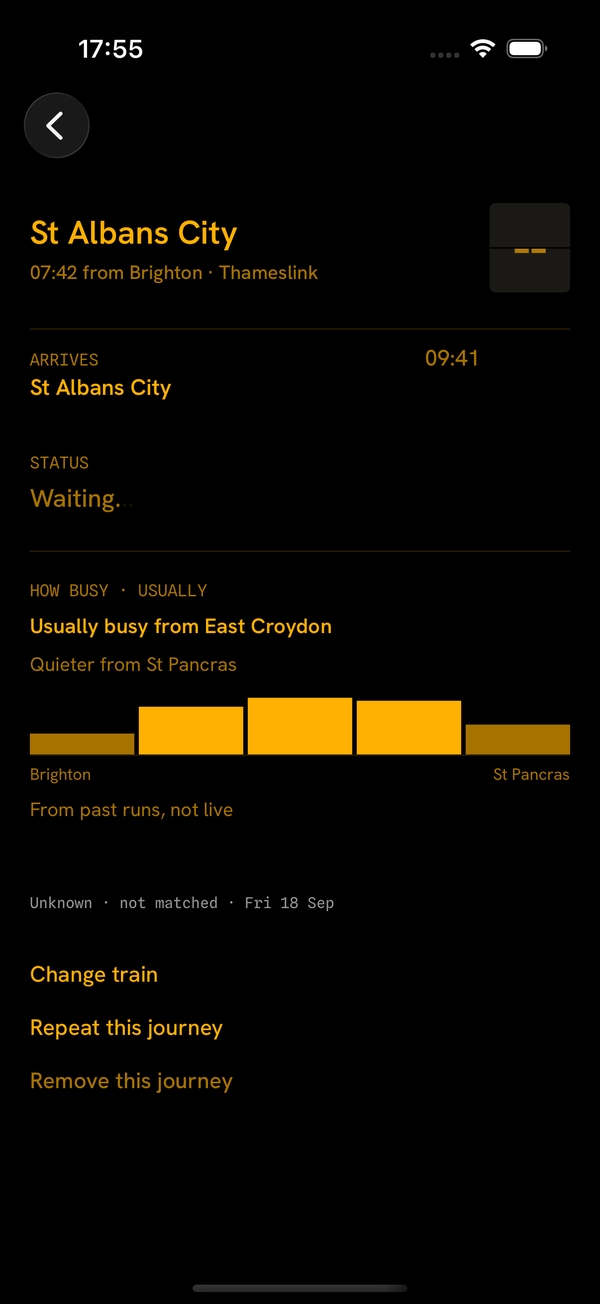
- The usual figure. Some operators say how full the whole train usually is at each stop, from past runs: "Usually busy from East Croydon, quieter from St Pancras". It is a pattern, not live.
- Nothing. Most operators send neither, so the section does not appear. Platted never guesses.
Coaches are named by number, never front or rear: the feed gives the order of the coaches, not which end leads.
How do Previous journeys and delay compensation work?
When your train arrives late enough for its operator to pay compensation, you get one push: "You may be able to claim Delay Repay from Great Western Railway". Open the journey for the claim link. Every operator has its own page and its own rules: most pay from 15 minutes late, some from 30, Grand Central from 60. The Elizabeth line and London Overground use TfL's delay refund, from 30 minutes.
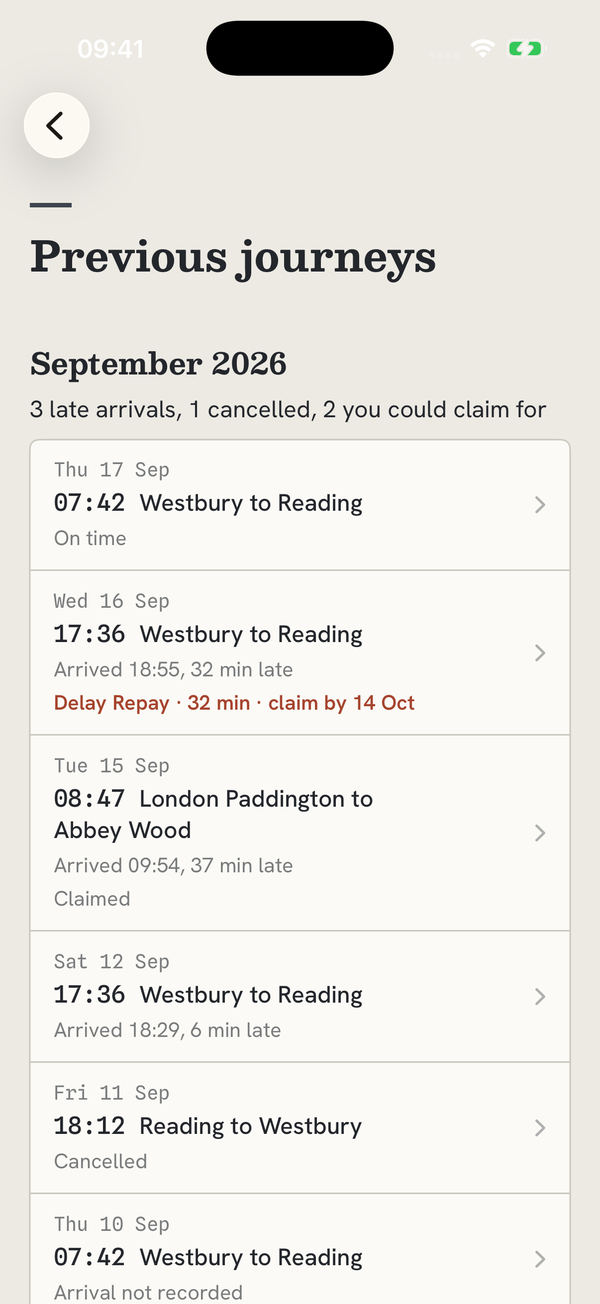
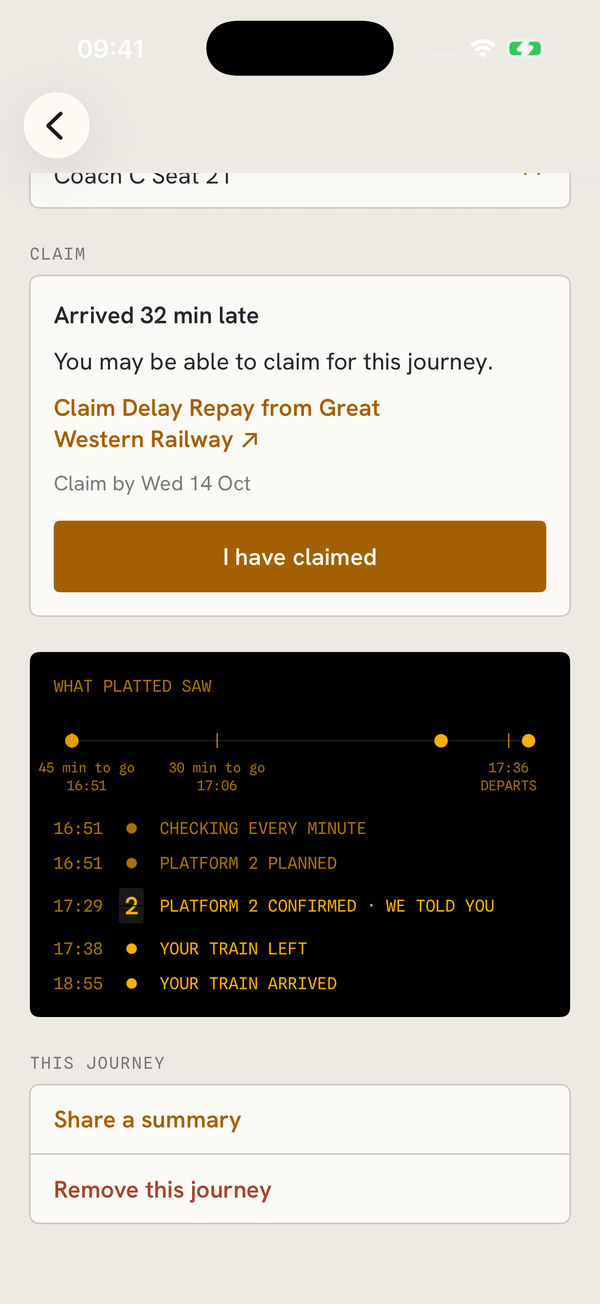
Once a journey is over it moves to Previous journeys, reached from Settings or the link at the foot of the board. Each journey keeps what a claim form asks for: the date, the stations, the booked and actual times, how late and why, the operator, your ticket type and booking reference. Each is copyable. The journey's page has the claim link and the last day to claim, then "I have claimed" and "Mark as paid" to keep track. "Share a summary" sends the facts as text. Each month has a line, for example "13 late arrivals, 1 cancelled, 4 you could claim for".
- Journeys are kept for 13 months, then removed. You can remove any journey sooner: long press it, or open it and tap Remove this journey. It cannot be brought back.
- Platted says "you may be able to claim", never that you are owed. The operator decides. Lateness is always the recorded arrival against the booked one. Where the arrival was never reported, the journey says "Arrival not recorded".
- Following a claim link takes you to the operator's own website. Platted sends them nothing. How much each operator pays, and by when, is on our Delay Repay page.
- Previous journeys is part of the subscription.
How do I fix a journey in Check these?
If Platted is not sure it matched the right train, for example because the time on the booking did not match a train exactly, the journey waits under Check these. Open it and tap Fix this train, then pick the right train from the trains near your time. Anything that did not match is shown in red.
How do I remove a journey?
Swipe left on it on the board. Or open it and tap Remove this journey. It leaves the board and Platted stops checking its trains. If the journey has already run, its record stays in Previous journeys until you remove it there too. Once removed there, it is deleted for good. This is how to delete some of your data without deleting your account.
Notifications
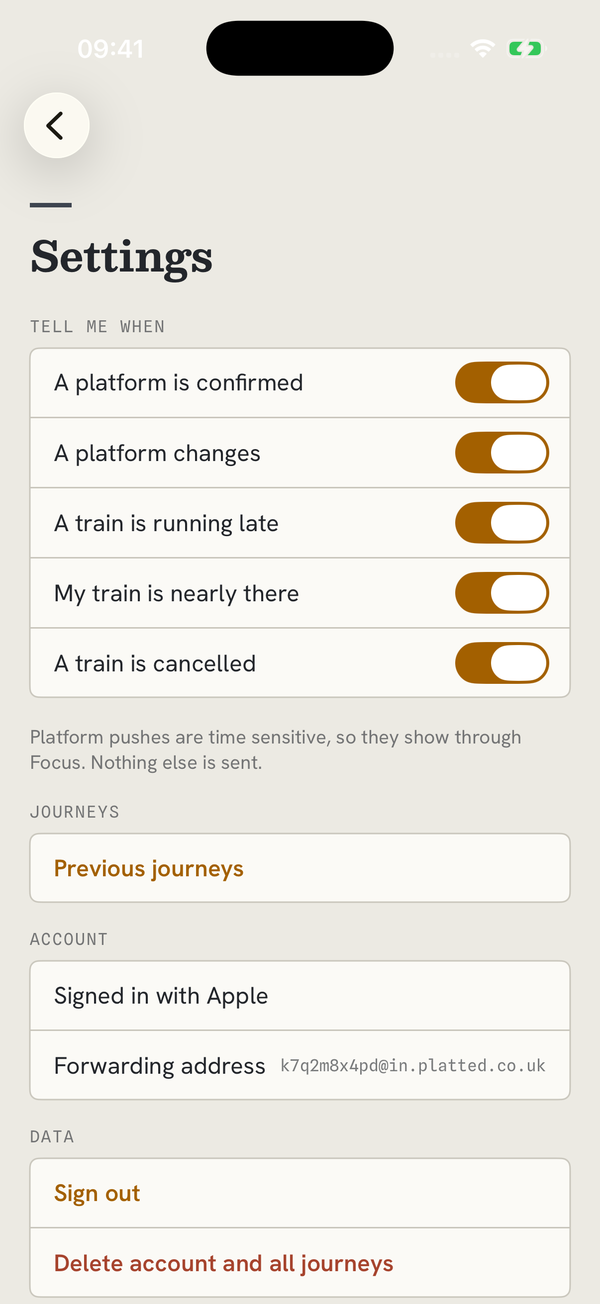
- Allow notifications when Platted asks. If you said no, turn them on in iPhone Settings, Notifications, Platted.
- Platform alerts are time sensitive, so they reach you through Focus. Keep Time Sensitive Notifications on for Platted.
- Choose which alerts you get in Platted's Settings. There are five switches: a platform is confirmed, a platform changes, a train is running late, a train is cancelled, and my train is nearly there. Late starts, changes at risk and delay compensation follow the running late switch.
- You get one push per real change. Nothing is sent for things you cannot act on.
Live Activity, widgets, Apple Watch and Siri
- Your train appears on the Lock Screen and in the Dynamic Island from 45 minutes before departure until you arrive.
- If you do not see it, check that Live Activities are on in iPhone Settings, Platted.
- Widgets, on the Home Screen, the Lock Screen and in StandBy, only show a train when you have one in the next 24 hours.
- On Apple Watch, install Platted from the Watch app on your iPhone, then add a Platted complication to your watch face. The watch buzzes when your platform is confirmed.
- Ask Siri "What platform is my Platted train?" for your next train's platform.
Signing in
Platted has no password. You sign in with Apple or with Google, whichever you prefer, and there is nothing to remember or reset.
The two are separate accounts. A journey added after signing in with Apple is not there if you later sign in with Google. So if your board is suddenly empty, you have almost certainly signed in the other way. Settings says which one you used, at the top. Sign out there and sign back in with the other, and your journeys are where you left them.
We cannot join two accounts together, so pick one and keep to it. Your Apple Watch uses whichever account your iPhone is signed in to.
If you chose Hide My Email when signing in with Apple, our emails reach you through Apple's forwarding address. That is fine, and it does not affect your own Platted forwarding address for bookings.
Subscription and free trial
Platted is free to download and comes with a 7 day free trial. After that it is £1.99 a month or £14.49 a year. Apple or Google handles payment, depending on your phone. Next train from here works without a subscription.
To manage or cancel, open iPhone Settings, tap your name at the top (your Apple ID), then Subscriptions, then Platted. If you do not want to be charged when the trial ends, cancel at least 24 hours before it ends. Refunds are handled by Apple at reportaproblem.apple.com.
On Android, open the Play Store, tap your profile picture, then Payments and subscriptions, then Subscriptions, then Platted. Cancel at least a day before the trial ends if you do not want to be charged. Refunds are handled by Google, as its Google Play refund page explains.
Is there an Android app?
Yes. Platted is on Google Play now, for Android phones and Wear OS watches. Install it on your phone first, then on your watch from the watch's own Play Store. The iPhone app is coming soon to the App Store. Sign in with the same Apple or Google account on every phone and your journeys are there: an Apple sign in and a Google sign in are separate accounts.
How do I delete my account?
In Platted, on iPhone or Android, go to Settings and tap Delete account. This removes your account and everything tied to it straight away: your journeys, previous journeys, forwarding address, booking emails, ticket photos and alert settings. It cannot be undone.
Without the app, email [email protected] from the address on your account and we will delete it within 30 days. Weftworks Limited, which makes Platted, keeps nothing about you afterwards. The only records that stay are of how trains ran, which name no one.
Deleting your account does not cancel your subscription. On iPhone, cancel it in iPhone Settings as above. On Android, cancel it in Google Play, under Payments and subscriptions.
Contact
Email [email protected]. If it is about a train, tell us the date, the time and the stations, and what you saw.